Checking module status
Follow in the Console whether Infinite Data's areas are available and ready to use.
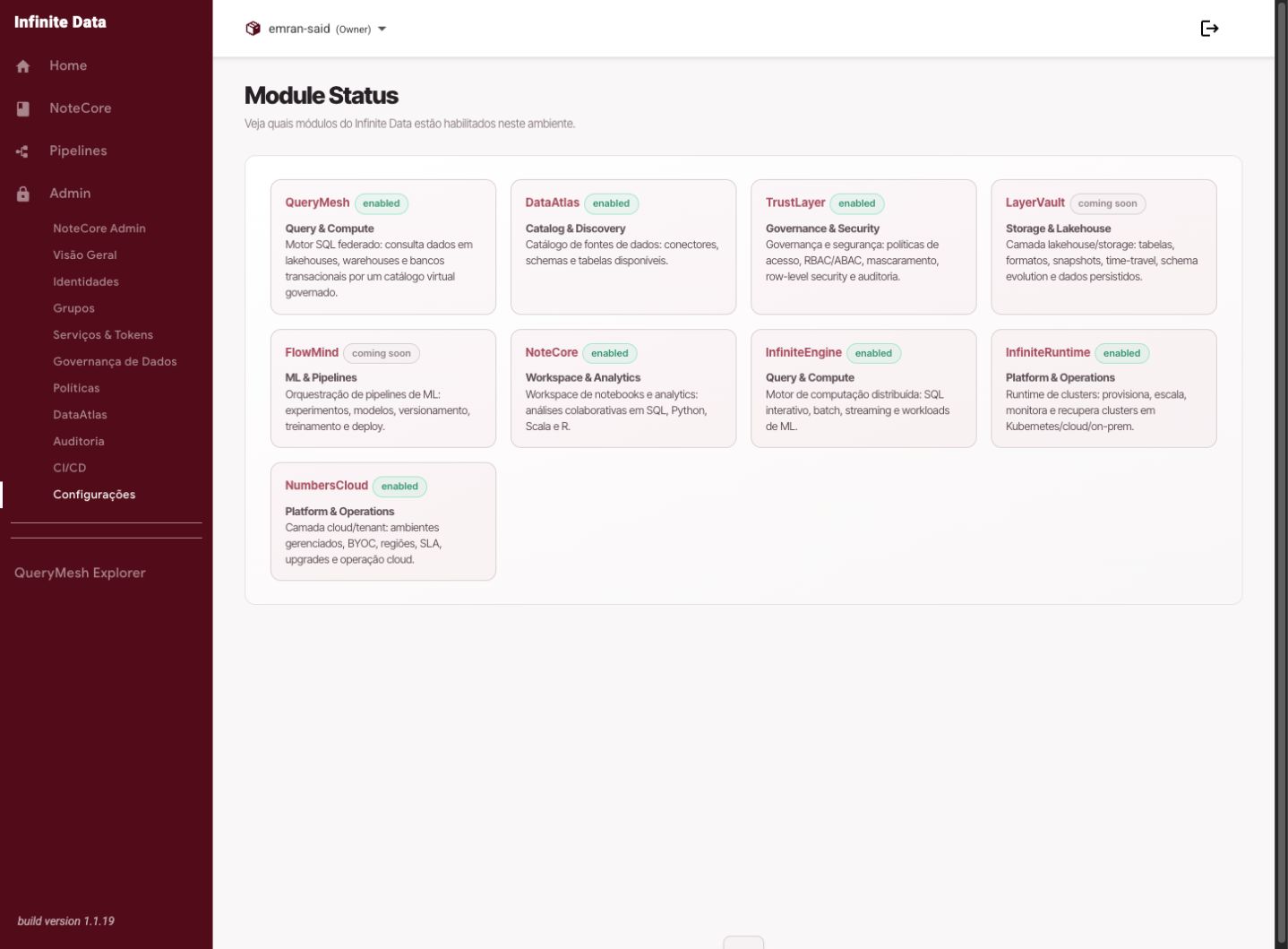
When to use this
- Use it when users report unavailability.
- Use it after significant administrative changes.
- Use it to confirm whether an area of the product is ready for operation.
Before you start
- Have an environment administration role.
- Know which area was reported as unavailable.
- Have examples of the users or times affected.
Step by step
- Open Environment administration.
- Go to the module status view.
- Review the availability indicators shown on screen.
- Compare the status against what users reported.
- Where there is an alert, read the guidance shown.
- Tell the affected team about the follow-up and the next steps.
What happens next
- You will have a health view of the areas visible in the Console.
- Problems can be followed in language that is clear to users and managers.
- Significant administrative actions may be recorded.
Common errors
- Confusing a user's access denial with a module being unavailable.
- Overlooking the affected user's time and role.
- Reporting everything as normal without checking the area that was reported.
Good practice
- Ask users for evidence before concluding there is a general impact.
- Record the perceived start and end times.
- Use product language when communicating status.
Next steps
Was this page helpful?
Report a problem on this pageDo not send passwords, keys, tokens, or customer data.