Autonomy & permissions
Imaginne acts on your machine — so control over when it asks permission and what it can run is central. There are three complementary mechanisms: autonomy, execution mode, and the vault (firewall).
Autonomy levels
Autonomy defines how much the agent asks before acting.
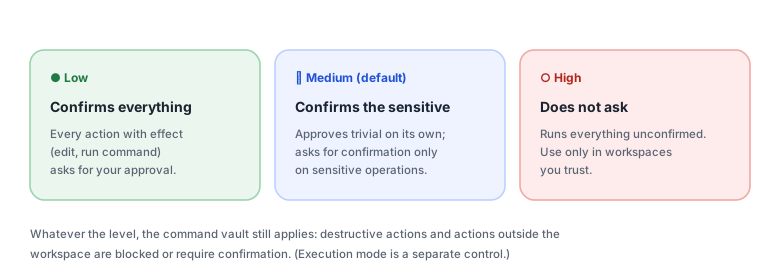
| Level | Behavior |
|---|---|
| Low | Confirms every action with an effect (edit a file, run a command). Maximum control. |
| Medium (default) | Approves trivial actions on its own; asks for confirmation only on sensitive operations. |
| High | Runs everything without asking. Use only in trusted workspaces. |
You adjust autonomy on each surface:
- Desktop — Settings → Autonomy (Low / Medium / High).
- Terminal (TUI) —
/autonomy(or/a, or Ctrl+A). - VS Code — picker in the panel (Ask / Fix / Agent / Bypass — see Use in VS Code).
Command execution mode
Independent of autonomy, there's a stricter control over running terminal commands:
safe— the most restrictive: no shell strings, operators, or redirection.auto(default) — today it behaves likesafe.dangerous_bypass— turns off the shell validations (allowssh -c, pipes, redirections). It's only available if the application was started with an explicit flag; otherwise the request is downgraded toauto. Even in bypass, the workspace and audit limits still apply.
The dangerous mode does not turn itself on from configuration — it requires starting the binary with the appropriate option. It's a deliberate decision for trusted workspaces.
The vault (firewall) — always on
Underneath everything, a set of rules protects your system, at any autonomy level:
- Strict workspace scope by default: reading, writing, and executing outside the workspace is denied unless policy opens it. (Your
~/.imaginneconfiguration folders are an exception.) - Hard denials: catastrophic commands (
rm -rf /, system paths like/etc,/usr,C:\Windows) never run. - Credential paths (
.ssh,.aws,.env,credentials) require sensitive confirmation. - Write review ("see the diff first"): the VS Code extension shows each edit as a diff for you to Apply/Reject.
Failure-repeat guard
An internal watcher tracks failure streaks during a task. If the agent enters an unproductive loop, it can be nudged or stopped — preventing a "stuck" agent from burning time and tokens for nothing.
How to choose
- Exploring, shared machine, sensitive data → low autonomy.
- Day-to-day → medium (the default).
- Disposable/your own workspace, repetitive task → high, and consider the appropriate execution mode.
See also
Was this page helpful?
Report a problem on this pageDo not send passwords, keys, tokens, or customer data.