Floating IPs
A floating IP is generally a routable public IP address that is not automatically assigned to an entity. Instead, the project owner assigns it temporarily to one or more entities. Each entity automatically gets a static IP for communication between instances inside a non-routable private network area, as well as a manually assigned floating IP. That makes the entity's services discoverable — and therefore reachable — from outside a cloud or network.
In properly configured failover scenarios, an IP 'floats' to another active unit on the network so it can take over from an inactive entity without delay, and can then answer incoming requests.
Failover and switchover
If a primary load balancer or a central application server in a cluster fails on one side, a floating IP can be assigned immediately to a redundant application server or to a secondary load balancer in a correspondingly configured system. The IP floats to the active unit, which immediately carries out the intended work. An unplanned change between network services is known as failover. This kind of protection is especially recommended for critical applications.
A planned change from a primary system to a secondary one is called a switchover (or 'transition'). This deliberate handover of services is not triggered by errors; it is usually controlled by a system administrator. A classic reason for a switchover is routine maintenance of the primary or secondary systems, where a parallel instance temporarily takes over the role.
What advantages does a floating IP offer?
One of the main advantages of floating IPs is their flexibility — the ability to assign them freely and as needed. Floating IPs are therefore well suited to failover and switchover environments: for example, to roll out updates to applications or entire sites with minimal downtime. While one entity is being updated, another takes the traffic. As soon as the update completes successfully, traffic is redirected to the updated unit.
Another advantage: even when several — or many — different entities sit behind an offered service, what users see on the surface is the floating IP, not the IP of the server providing that service.
How to associate a floating IP with a compute instance
Open the Cloud console
In the left menu, click Compute and then Instances:

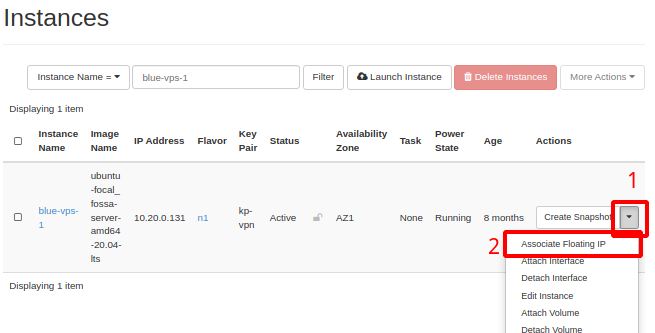
The list of previously created instances loads. Once you find the instance, click the down arrow on the right to open the menu. In the menu, click Associate Floating IP
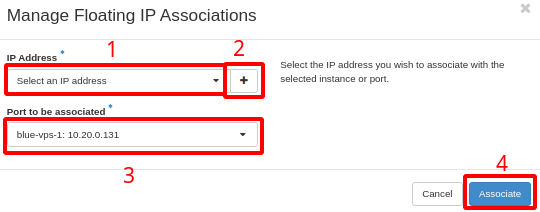
In the window that opens, check whether you have an IP (Item 1). If you do not, click + (Item 2) to reserve one — it then appears in the list (Item 1), and you need to repeat the first step after reserving it. Select the port you want to associate the IP with (Item 3). Then click the "Associate" button at the bottom of the form (Item 4).
How to associate a floating IP with a load balancer
Open the Cloud console
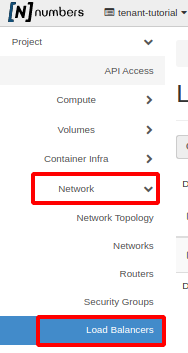
In the left menu, click Network and then Load Balancer
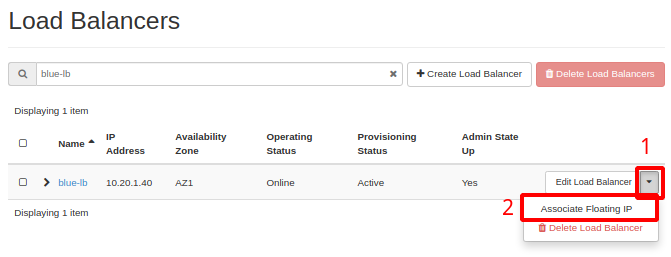
The list of previously created load balancers loads. Find the load balancer and, on the right, click the down arrow (Item 1) to open the action menu. In the menu, click Associate Floating IP (Item 2)
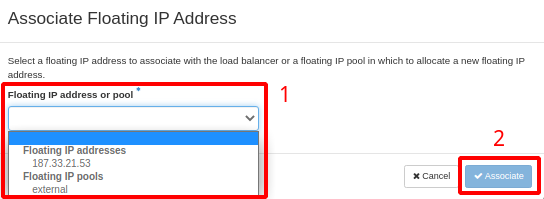
In the window that opens, click the field under Floating IP address or pool (Item 1) and pick the IP from the list. If you have no IP, choose the external option to allocate one. Then click the Associate button (Item 2) at the bottom of the form.
Next steps
Was this page helpful?
Report a problem on this pageDo not send passwords, keys, tokens, or customer data.